The chart in the reply
Some findings are a shape: sixteen numbers where four stand out, five versions of one line of UI. In Codecast an agent can put that shape in its reply as a chart, a table or a mockup, drawn right in the conversation, so you see it before you read the paragraph explaining it.
Sixteen cores in one picture
On October 5th the machine we build Codecast on was overloaded again, and we asked an agent to investigate and talk through the root cause with us. The session's first pass, run by Codex, put it down to too much independently launched work with no machine-wide budget. A session the Thursday before had blamed a low battery. Claude, which took over in the same session, measured the load on each core separately, and its reply led with this:
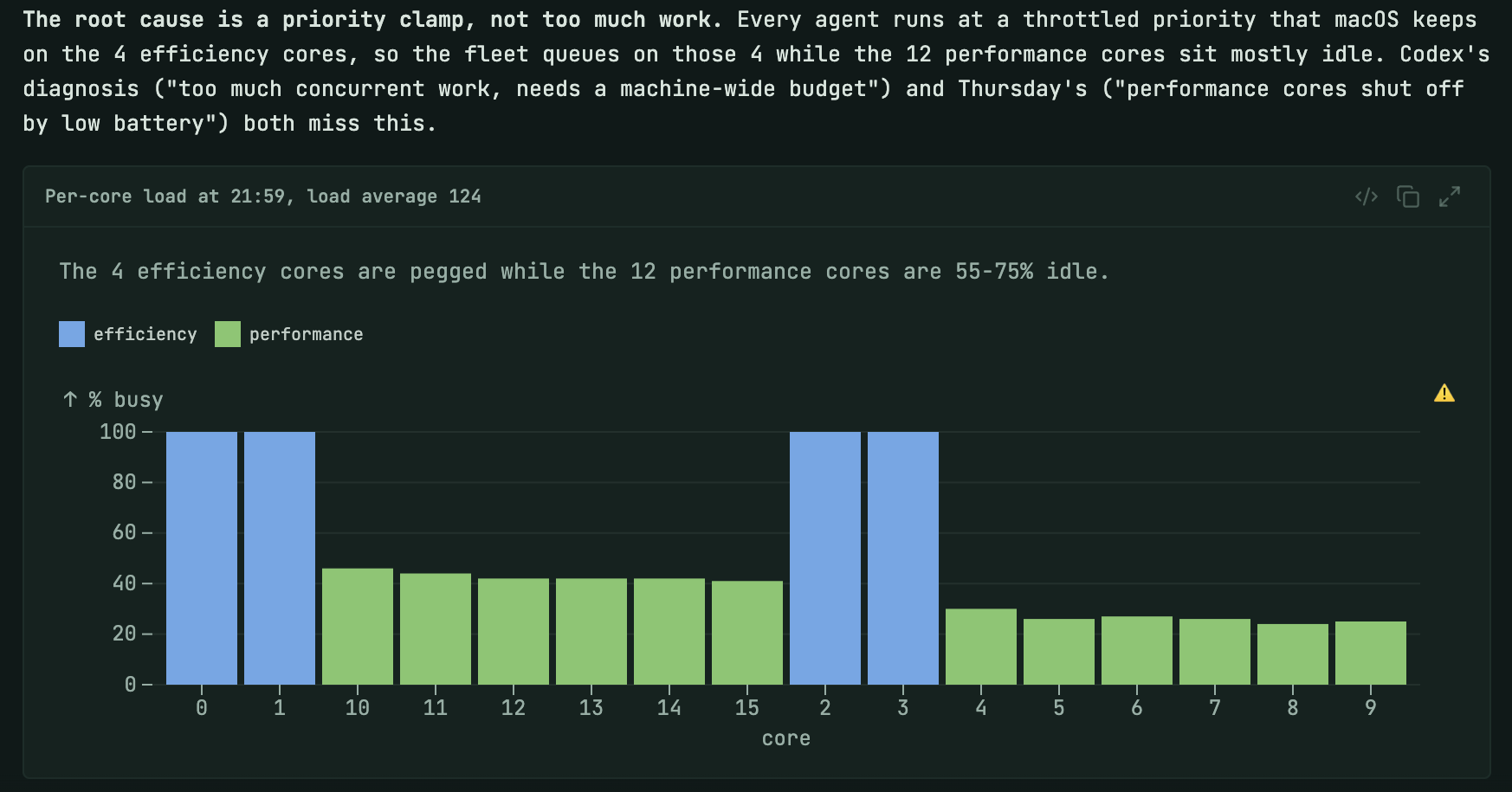
You do not need the paragraph to get it. Four blue bars at 100 percent, twelve green bars well under half. The agent's reading: every agent on the machine was running at a throttled priority that macOS keeps on the four efficiency cores, so all the work queued there while the twelve performance cores sat mostly idle. The text under the chart carried the rest of the evidence: 680 processes at the clamped priority shared 2.6 cores, and the same busy loop got 0.44 seconds of CPU from an agent shell against 9.43 seconds as an unthrottled job, about twenty times more. The cause was one missing setting in the launch file of Codecast's background process.
The chart has one flaw, and we left it in. The agent wrote the core numbers as text, so the axis sorts them as text: 0, 1, 10, 11 and on to 15, then 2, 3. That is why two of the blue bars sit in the middle. The small warning sign in the corner is the chart library noticing the same thing: the values look like numbers but arrived as strings.
What the reply was for
The agent ended that reply with three choices about rollout and asked how to handle the restart. The answer came back in one line:
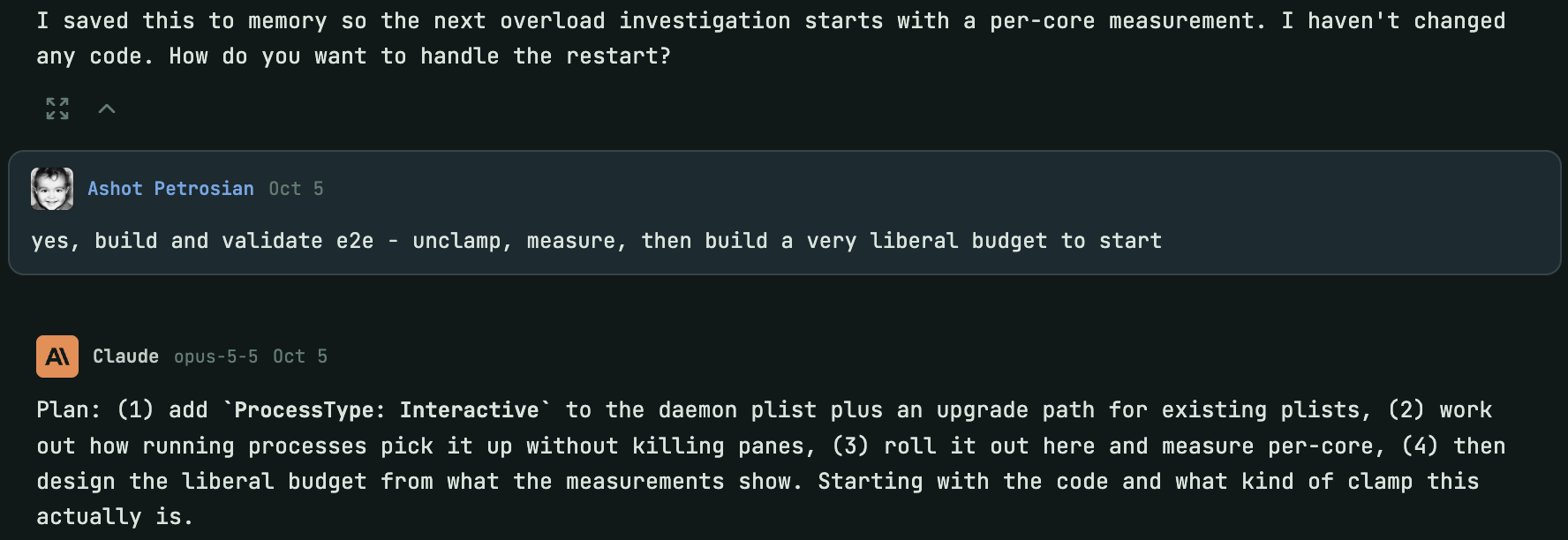
The fix shipped: the background process now launches at interactive priority, and existing installs rewrite their launch file automatically. Once it was live, the agent measured again and reported all sixteen cores busy instead of four. It also found that the fix removed only one of two causes, and the second became more work in the same session. The chart did its job either way. It turned a disputed diagnosis into something you could check at a glance, and the decision came right after it.
Five versions of one line
A canvas is just as useful when the question is how something should look. On October 1st we told an agent that the way Codecast prints a session's character name and title, as in Whisker : Team huddle observation, was subtly off. The usual move would be to change the component and check it in a browser, but the machine was at a load average of 275 and the agent's browser connection kept stalling. So it wrote: "Instead I'll lay the variants out side by side in a canvas."
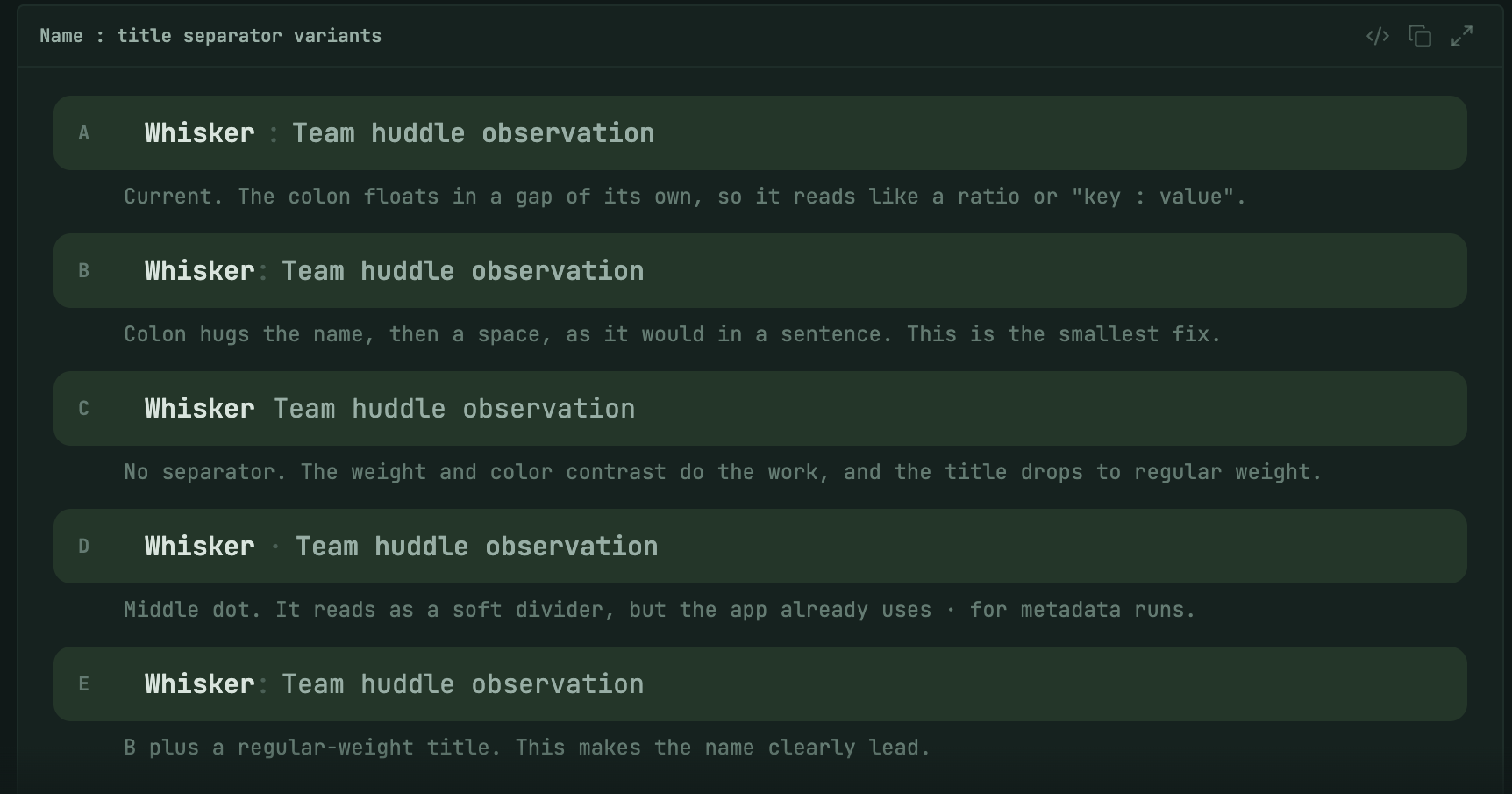
The rows are drawn with the app's own font and colors, so they look the way the real line would. The agent applied B, the smallest fix, and recommended E if that still felt flat. It also pointed out a cost of D: the app already uses a middle dot between pieces of metadata. We picked D anyway:
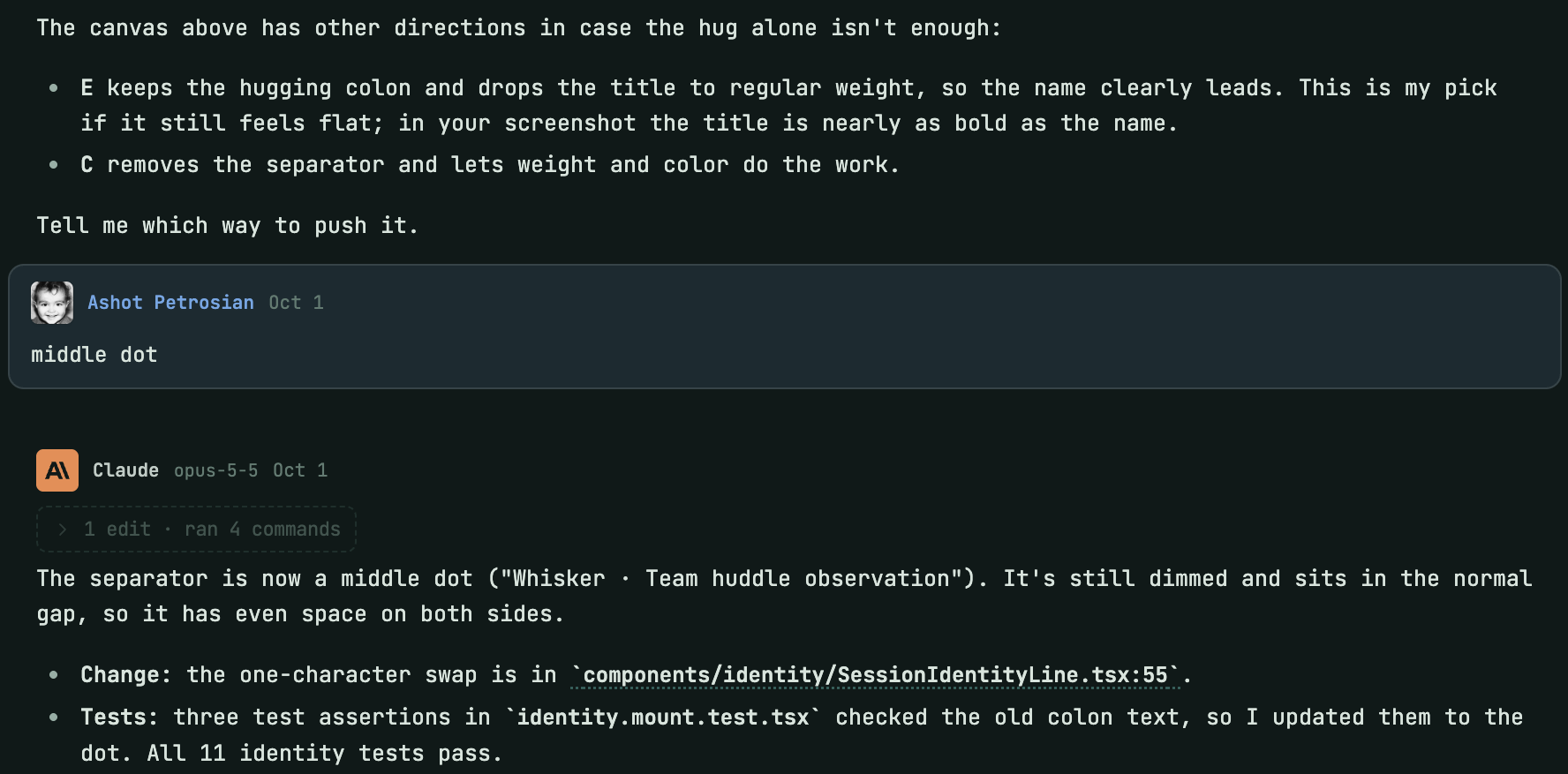
Two words were enough because every option had a letter and a picture. The agent made the swap, updated the three test assertions that checked the old colon, and the middle dot is what the app shows today.
How a canvas behaves
A canvas sits in the conversation like any other part of the reply, with its title on a header strip and three controls. Show source flips it to the HTML the agent wrote, Copy HTML copies that, and Fullscreen opens it on its own over the app; Esc closes it. A tall canvas folds behind a fade with a control to show the rest.

The source shows how little the agent writes for a chart: a title, a caption, and a description of the bars as data. Codecast draws the chart itself, so it uses the app's font, follows light and dark mode, and can show each value on hover. The same goes for tabs, sortable tables and tooltips. You can also see the cause of the odd axis order here: "c":"0" is a string.
Canvases are safe to show to anyone who can read the session. No script the agent writes ever runs: Codecast strips scripts and event handlers before drawing. A canvas also cannot load anything from outside. An image has to be embedded in the canvas or stored in Codecast, so viewing one never tells a third party you looked. The desktop app draws canvases the same way as the web app, and the phone app draws them too; an older phone build that predates the feature shows the source as a code block instead.
Agents do not need prompting to use this. The instructions Codecast installs for your agents tell them to reach for a canvas when structure or size carries the meaning (comparisons, flows, timelines, metrics) and to keep ordinary prose in markdown. The same applies to the questions agents put in your decision queue, where a canvas can lay the options side by side.
From a script
A canvas is a fenced block in the agent's markdown, so any agent that writes markdown can draw one, and so can you:
$ ```cast-canvas
$ <div data-canvas-title="Shown in the header"> … </div>
$ ```
Codecast records every coding agent session you run, on any machine, and gives you one place to see them, steer them and answer them.
All five screenshots are the codecast web app on 2026-10-18, of two of codecast's own sessions from October 1 and October 5. Each is cropped to the conversation column: the sidebar, the top bar, the session header and the right rail are outside every crop, as is the strip that keeps the last user message pinned at the top while you scroll. The fourth screenshot starts at the canvas, below the agent's one-line lead-in quoted above it. Nothing was composited or retouched, and the chart's axis order and warning sign are as the agent drew them. The fullscreen view and the phone app are described, not pictured. No message was sent and no session was changed for this post.