Your agents get a tab in the Chrome you are already signed in to
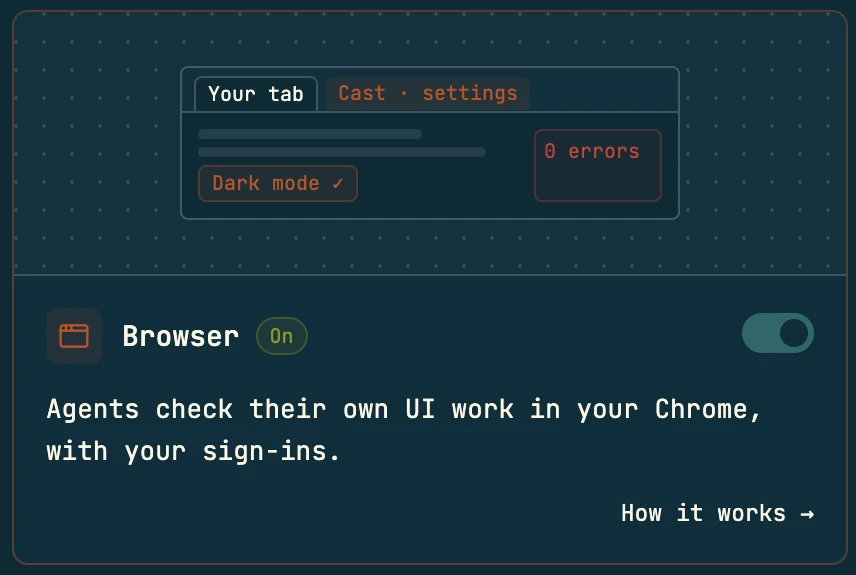
Each agent session drives its own background tab in your real Chrome, inside a red Cast tab group. It reads the page as numbered refs, acts on them, and posts every screenshot, console error and failed request into the conversation. You keep working in your own tabs.
From the Chrome Web Store, in the Chrome profile agents should use.
Click Pair on the setup page or the Browser card in Agent features. Chrome opens the extension; click Pair there too.
The card reads Chrome connected. Every agent on the machine now uses your Chrome.
Agent tabs open in a Cast group in your own Chrome
The codecast extension lets agent sessions open tabs in the Chrome you already use. Every agent tab opens in the background, inside a red Cast group. Your own tabs, windows and focus stay where you left them.
It uses the Chrome profile you are signed into
The agent uses the profile you are signed into, with no cloned profile or copied cookies. If your Chrome can open a page, such as a dashboard behind SSO, a staging site or an admin panel, the agent can read it. Nothing syncs your profile anywhere.
Agent tabs open in the background
cast browser open creates the tab directly at the URL, in the background. Your screen only changes when an agent runs show, which it does when you asked to see the page or must act in it.
One tab per session
open reuses the session's tab. tabs lists this session's tabs and tabs --all every agent's. Several agents can share one Chrome without stepping on each other.
How to tell a tab is being driven
A driven page wears a thin red border (hidden in screenshots), the toolbar icon shows a CAST badge, and Chrome shows its own debugging banner while a tab is attached. stop closes the session's tab when the work is done.
Screenshots and errors in the conversation
Screenshots render under the step that took them, and a failing step comes back with its own context.
A screenshot, inline
Renders under the step that took it, in the thread. It can be one element, the whole scroll height, or a link the agent uploads so you can paste it anywhere.
Numbers drawn on the picture
Every button and field on the image gets a number, so you and the agent can talk about "7" and mean the same button.
The same page at another size
The agent can show you the page as a phone, a tablet or an exact size sees it, then put the tab back.
Console errors and failed requests with each failure
A step that fails comes back with the page's console errors and failed requests, newest first, and a picture of what the screen showed.
Controls on each row
open tab brings the agent's tab forward in your Chrome. watch live streams it into a pane beside the thread.
Taking over when a page needs a person
Some pages are yours to handle: a sign-in, a two-factor prompt, a camera permission. The agent says so and waits. You sign in, in the same tab, and it carries on.
Watch it live
The watch live pill on any browser row streams the agent's tab into a pane beside the thread, with the agent's cursor drawn where each click lands. It only streams while you are looking.
Take the wheel
Your clicks and typing go to the page. The agent keeps its session and hears none of it. Esc hands the page back. Try the button on the left.
Or bring the tab forward
The open tab pill on the row raises the agent's tab to the front of your Chrome. An agent can do the same once, when you asked to see the page or must act in it, and never on a loop.
What agents use the browser for
Most of it is the work a person does in a browser after writing code: look at the result, read something behind a login, chase a bug report, check a phone layout.
“The save button on settings should show a toast now. Make sure it does.”
In the conversation: A screenshot of the toast under the agent's browser row, or, if "Saved" never shows, the console errors and failed requests that explain why.
Local connection, audit trail and allowlist
Your signed-in browser gives an agent a lot of access, so the connection never leaves the machine, every site an agent lands on is written down, and a project can limit where agents may go at all.
Pairing hands the extension a token once. After that, each side proves it holds the token with an HMAC over a fresh nonce, so the token itself never crosses the socket, and the extension runs nothing for a host that has not proved it. Setup never prints the token in agent output, because that output syncs off the machine.
An audit trail of every origin
The audit trail is always on. It keeps origins, never full URLs, because paths and query strings carry tokens. A refused navigation is on the trail too. The app has no view of it yet; read it in a terminal.
An optional allowlist
Off by default. Turn it on per project, or per machine with browser_allow in ~/.codecast/config.json. An empty list allows nothing. A click or redirect that lands off the list is flagged.
No silent fallback. If the extension is missing or asleep, commands wait for it, then say what to fix. They never launch a different browser instead.
Dialogs cannot freeze a tab. Alert, confirm and beforeunload dialogs are dismissed automatically; dialogs lists what the page tried to open.
Your tabs are off limits. Agents act on tabs they opened. The extension never adopts a tab group you made.
Using your sign-ins from a cloud host
A session on your cloud host has no Chrome of yours. When it needs a site you are signed in to, the agent asks your laptop to carry that one login across, over SSH, into the host's browser. There is no button for this; the agent does it.
- Cookies are never printed. The request carries the site's origin and the answer carries counts.
- Google is the exception. It signs in on its own and cannot be carried.
- Datacenter IPs get challenged. Google and DuckDuckGo may bot-block a host; Bing works.
- In the desktop app, an agent can offer you a page as a pane beside the session.
How an agent reads a page and acts on it
From here down is the agent's side: commands it runs, so you never type them. A snapshot is the page's accessibility tree, cut down to what an agent can act on. Each element gets a ref like #e7, and every acting verb takes one, so the agent does not guess at pixel positions or write fragile selectors. Hover a row to see what it points at.
Interactive elements only, in one region. Big apps stay cheap to read.
Names are matched on visible text. Namesakes are numbered, and visible elements rank first.
Only what changed since the last snapshot, so a step's effect is one short read.
The page as clean text, for "what does this page say". get text <sel> reads one element.
Refs survive a re-render. Each snapshot records every ref's role, name and position among its namesakes, so when the page refreshes and #e5 goes stale, cast finds the element at the same position again, so the third "Delete" stays the third.
Running several steps in one command
Every cast command spends one to three seconds starting up for about 85 ms of work in the browser. cast browser do runs a whole flow in one process, so an agent that can see three steps ahead pays for one startup across all three.
- A step without a ref acts on whatever the last
findmatched, so a flow reads like instructions to a person. - It stops at the first failing step and reports what ran and what never did.
--keep-goingcarries on past it. - Each step's result shows in the conversation as one row, with one screenshot at the end instead of a frame per step.
- Waits watch for a specific state with
wait --text,--url,--loador--fn, instead of sleeping for a fixed time.
Command reference
Agents learn these from their instructions; you only need them to script it yourself. Every verb is cast browser <verb>, and cast browser help <verb> prints its flags.
- open <url>
- The session's tab, created at the URL in the Cast group
- back · forward · reload
- History
- tabs [--all]
- This session's tabs, or every agent's
- tab new · close · switch
- A second page, or another agent's tab on purpose
- stop
- Close this session's tab
- snapshot -i -s <sel>
- Interactive refs in one region (-c compact, -d depth, -u urls)
- read [--outline]
- The page, or a URL, as clean text
- text · get text <sel>
- One element's text, no eval
- find <text>
- Elements by visible name; namesakes numbered
- diff snapshot
- Only what changed since the last snapshot
- click · hover · focus
- On a #eNN ref or a CSS selector
- type <ref> <text> [--submit]
- Type, then Enter
- fill · select · press
- Fields, dropdowns, keys
- scroll · drag · upload
- Scrolling, dragging, file uploads
- wait --text|--url|--fn
- For text, a URL or a JavaScript condition
- shot [--annotate] [--full]
- Inline in the conversation
- shot -s <sel> · --share
- One element, or a link to paste elsewhere
- console · errors
- What the page logged and threw
- network requests · har
- Requests, routing, HAR capture
- vitals · a11y · record
- Web Vitals, axe audit, WebM video
- do <steps…> | do -
- Many steps, one process (--keep-going)
- eval <js> | --stdin
- JavaScript in the page; promises awaited
- viewport <size> [--reset]
- desktop, laptop, wide, tablet, mobile, mobile-small
- shots on|off
- Auto screenshots after page changes
- dialogs
- What the page tried to open
- extension setup · status
- Pair once; check the connection
- show
- Raise the tab, when you must act
- audit [--all]
- Origins visited
- sync [url]
- Carry a login to a cloud host
- chrome restart · launcher
- Run Chrome so agent tabs keep normal priority
Requirements and limits
›What does it need?
Desktop Chrome 116 or later, the Codecast extension installed in the profile you want agents to use, and paired once with the computer: click Pair on the Browser card in Agent features, or on the setup card that appears under an agent's step when Chrome is not connected. Chrome has to be running.
›Which pages can it not drive?
Pages Chrome walls off from every extension: chrome://, chrome-extension://, and the Chrome Web Store. open says so before trying, and the agent hands you the URL and the steps instead.
›Why is it sometimes slow?
Chrome throttles background tabs, and on a busy machine a hidden tab can go quiet for tens of seconds. Steps report what they are waiting on. Restarting Chrome through codecast (cast browser chrome restart) adds the switch that keeps agent tabs at normal priority, and agents batch steps to cut the rest.
›Can an agent read my other tabs?
Agents are told to act only on tabs they opened, and the CLI lists and reuses only the session's own. The extension does hold Chrome's debugger permission, since that is what drives a tab, which is why every attached tab is marked, why the connection is local and token proven, and why the audit trail exists.
›What stays with you?
Sign-ins, two-factor codes, and camera, microphone and clipboard prompts. The agent asks; you act in the same tab or through the wheel.
›Is there a separate agent browser?
Only if you explicitly ask for one. Your Chrome is the default every time, including before pairing and after restarts; a missing extension shows you a setup card and does not switch to another browser.
Related features
Agents read any macOS window as an accessibility tree and act on it by name, in the background, without taking your screen, your mouse or your keyboard.
Reports, dashboards and mockups go live at a stable link with versions, diffs, comments and gates, and render inline in the conversation that made them.
Start a session on your cloud host from this checkout, uncommitted work included, mirror its tree back live, and migrate sessions between laptop and host mid-turn.
Delegate to workers on any backend, branch a conversation into parallel directions, or move a session to another agent without losing a line of history.
Get started with the browser
curl -fsSL codecast.sh/install | sh