Your agent uses the apps on your Macwhile you keep typing
Ask your agent for something you would otherwise click through in a Mac app. It reads the window as a list of named controls, acts on them, and shows you in the conversation exactly what changed. It works on windows behind the one you are using, so Preview, Slack, System Settings or your own desktop build are in reach without the agent taking your screen.
What you can hand it
“Sign the lease in Preview with my saved signature.”
Clicks Sign, picks the saved signature from the popover, and stops before saving or sending.
find · click · action
“Check that the desktop build shows the new settings pane.”
Reads your app's own window, opens the pane by name, and reports the tree and a screenshot.
get-app-state · click · wait · shot
“Pick the export folder in the save dialog.”
Works the native file picker and permission sheets a web page cannot reach.
find · set-value · press-key
“Is Bluetooth on, and which mic is selected?”
Reads System Settings and answers. Reading is the agent's to do; changing a setting waits for you to ask.
find · get-app-state
The agent works in windows behind yours
Every verb works on a background window. The agent's keys go to the app it is driving, never to the one you are typing in. No verb brings a window forward on its own.
The orange pointer is the agent. Any action that lands on a point draws it gliding there and pulsing on the press, over the screen and without taking focus, so you can see what is happening without being interrupted. --no-cursor hides it for one action.
When an action does need a real mouse event, your pointer returns to where it was. The one flag that raises the target window is --restore-window, and agents are told to pass it only when nothing else will do.
How the agent reads a window
An agent names an app and gets back one window as text: every element on its own line, with an index, a role, a name and the actions it advertises. In the conversation it shows as the step's output, with a picture of the window beside it once Screen Recording is granted. This is a real Finder tree, with the file names changed.
Point at the window or at a line of the tree.
Printing part of the tree. find "Sign" prints only the matches and their ancestors. --under 31 prints one subtree. Both take a /regex/.
Gaps in the numbering. The tree drops noise, so indexes skip. An agent never counts its way to one; it reads the number off the line.
Old indexes fail. An index belongs to the tree it came from. A stale one fails as element_not_found instead of clicking whatever sits there now.
What each action reports back
An action prints one sentence saying what was attempted, by which route and whether it was verified, then the lines of the tree that moved. The agent gets the indexes for its next step without taking another snapshot, and finds out right away when an app ignored it.
macOS cannot confirm that a press did what a button promises, so a click reads attempted. The diff under it is the proof. It shows a popover with three new elements, and the indexes to use next.
Grant the two macOS permissions
macOS asks a person to grant Accessibility and Screen Recording by hand. Until then the agent cannot read a window, and says so. Codecast signs a small helper app and asks for both on its behalf, so neither Codecast nor your terminal holds them.
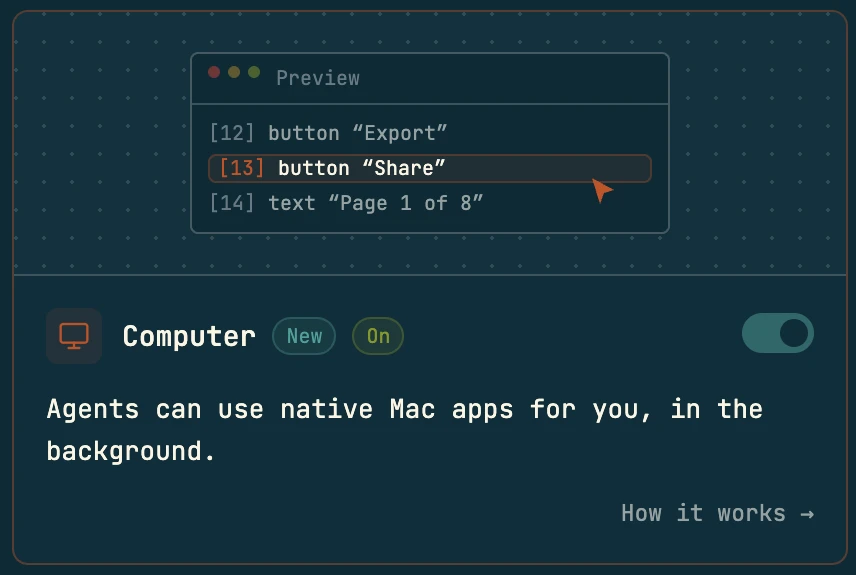
The setup page grants both from the browser, or in Agent features, switch on the Computer card. It lists the two grants still missing, and its Open System Settings button opens the pane for the next one. When both land, the card reads Permissions granted.
In the desktop app, Settings, Desktop, Permissions shows them under Agent computer use as Computer control and Computer screenshots. If an agent reaches for an app before they are granted, the same steps appear as a card under its step in the conversation, with Tell the agent to continue once they are done.
Lets the helper read the window you name and act inside it. Every verb needs it. It goes to the helper and not to your terminal, because macOS attaches a permission to the program that asks, and your terminal runs everything you and every agent type there.
Lets the helper take a picture of the window it just read, so an image comes back beside the text. The text works without it; only the picture fails.
From a terminal, cast computer setup walks through both grants the same way, and cast computer permissions reads them without opening anything.
On Linux under X11 the same verbs run through AT-SPI and a small helper the CLI writes to ~/.codecast/computer/linux/. It answers the same protocol as the Mac helper, so trees, diffs and filters read the same. --app takes the window's WM_CLASS there, such as google-chrome.
Limits that protect your Mac
Your Mac holds your mail, your bank and your passwords. These limits are enforced where they cannot be talked around, or written into the instructions every agent reads.
Password managers are refused
The helper itself refuses these, under any name an agent tries. No setting or instruction turns it off.
Secret fields never print
A password, passcode or one-time code field shows as [redacted] in every tree, so its value never reaches the agent's context or your transcript.
Secrets go in through stdin
--text-stdin and --value-stdin keep a token out of shell history and ps. Passing both a flag and stdin, or stdin from a terminal, fails with an error.
The agent reads on its own and waits for you before changing anything
Every agent with codecast installed carries the same standing instruction: do not push, submit a form, send a message, buy anything, delete data or change account settings unless you asked for that action. In an app holding sensitive content, read only what you were asked to read.
Run several steps in one command
This section is about the agent's speed. Each separate command pays a second or more to start the CLI. cast computer do runs a whole flow against one app over one helper connection. It stops at the first failing step and reports what ran and what never did; --keep-going carries on.
Steps read the way the window does, and each takes the single command's flags. A bare click or action after a find acts on what it found.
Error codes and their recoveries
A failure carries a code and the recovery for it: in --json as code and recovery, printed under the message otherwise. All of them say to change something before retrying and never to rerun a command unchanged. These are the recoveries word for word.
▸app_not_found
- Run
cast computer list-appsand retry with the exact bundle id. - A web app such as Gmail is not an app selector: target the desktop browser that contains it.
- If the browser is not listed, open or focus it first.
▸app_blocked
- Stop. Do not drive this app.
- Choose another target or ask the human to do it.
▸window_not_found
- Run
cast computer list-windows --app <app>and target a listed window. - If the app is listed with no visible window, retry observation once with
--restore-window. - cast computer does not launch closed apps.
▸window_not_focused
- Mouse input reaches only a window in front; keys and typing reach a background one.
- Look for a route that needs no mouse: a keyboard shortcut, a menu item, a Secondary Action, or set-value.
- If only the mouse will do, pass --restore-window, which takes the human's screen; if the message says presses were already delivered, run
get-app-statefirst.
▸window_stale
- Run
cast computer list-windows --app <app>and choose a current selector. - Then rerun
get-app-statebefore acting.
▸element_not_found
- Run
cast computer get-app-state --app <app>again and use an element index from the fresh tree. - Never infer an index from
elementCount. - Never reuse an index after navigation, scrolling, a focus change or a delay.
▸element_not_clickable
- Choose a parent or child that has a frame.
- Or use window-local coordinates taken from the latest screenshot.
▸action_not_supported
- Read the element's
Secondary Actionsin a fresh snapshot and use one of those names. - Or use
clickorset-value.
▸value_not_settable
- Choose a settable element from a fresh snapshot.
- If none accepts a write, focus it and use keyboard input, then inspect the returned state.
▸invalid_argument
- Fix the flags exactly as the message says.
- Do not retry unchanged.
▸action_timeout
- Run
get-app-statefirst so you know whether the UI changed. - Then retry with a simpler semantic action, or with
--no-screenshotif observation is slow. - Do not repeat the same timed-out action blindly.
▸permission_denied
- Run
cast computer permissionsto read the grants; it reports and shows nothing on screen. - To grant, ask the human first:
cast computer permissions --open-settings --id accessibilitytakes the front. - A token or peer failure means the helper belongs to another user or another launch: rerun the command, which relaunches it.
▸screenshot_failed
- If the tree is enough, rerun with
--no-screenshot. - If the message names Screen Recording,
cast computer permissions --open-settings --id screenshotsopens the pane. It takes the front, so ask the human first.
▸unsupported_capability
- Run
cast computer capabilitiesand choose a supported action. - Or use a semantic alternative such as
set-valueorclick.
▸provider_incompatible
- Run
cast computer capabilities. - Update codecast; the CLI and the helper it materializes must come from the same release.
▸accessibility_error
- Run
cast computer capabilities. - If the message names Accessibility,
cast computer permissions --open-settings --id accessibilityopens the pane. It takes the front, so ask the human first. - If it names the helper app, run
cast doctor. - Do not loop while availability is unchanged.
Command reference
Agents learn these from their instructions; you only need them to script it yourself. From cast computer --help. cast computer help <verb> prints one verb's flags from the binary about to run them, so an agent never works from a stale list.
- setup
- Walk a human through both grants. Idempotent; nothing opens until they confirm.
- permissions
- Read the Accessibility and Screen Recording grants. Shows nothing on screen.
- capabilities
- What the helper supports on this machine. Sets it up on first run.
- list-apps
- Running apps with a bundle id and a pid.
- list-windows
- Visible windows of one app, with the id and index other verbs target.
- get-app-state
- The indexed accessibility tree of one window, plus a screenshot.
- find <text>
- Only the matching elements, with their ancestors.
- wait [text]
- Until text appears, disappears (--gone) or anything changes (--change).
- click
- By index, by name or at a window-local point.
- perform-secondary-action
- Run one of an element's advertised Secondary Actions.
- set-value
- Write a value straight into an element and read it back.
- type-text
- Type into the focused element of a background window.
- press-key / hotkey
- One key, or a modifier chord like CmdOrCtrl+A.
- paste-text
- Paste through the clipboard, restoring what was there.
- scroll / drag
- Scroll an element or point; press, move and release.
- do [steps...]
- Many steps against one app in one process. - reads them from stdin.
- help <verb>
- That verb's flags, straight from the binary about to run it.
- --app <selector>
- Bundle id (preferred), app name, or pid:1234. On Linux, the WM_CLASS.
- --window-id / --window-index
- One window of an app with several, from list-windows.
- --element / --element-index / --nth
- Act by name (several matches are listed, never guessed) or by index.
- --find <text> / --under <index>
- Print part of the tree. /regex/ works too.
- --diff
- get-app-state prints only what changed since this window's last read.
- --json
- Machine-readable. Errors carry code and recovery; actions carry action.verification.
- --screenshot / --no-screenshot
- Snapshots capture by default, actions do not.
- --restore-window
- Raise the target window first. The only flag that takes your screen.
- --no-cursor
- Hide the agent cursor for one action. CODECAST_COMPUTER_CURSOR=0 hides it everywhere.
- --text-stdin / --value-stdin
- Read a secret from stdin, out of shell history and ps.
- --keep-going
- With do: carry on past a failing step.
Limits
- Which platforms?
- macOS, and Linux under X11 through AT-SPI. Both need a desktop session with the app open. There is no Windows provider.
- Does it open apps?
- No. It drives windows that are already open. A closed app answers
window_not_foundwith that said plainly. - What about apps that draw their own UI?
- A canvas, a game or a drawing exposes little to accessibility, so the tree says little. Coordinate clicks and screenshots still work, and the CLI says when a change may sit outside what the tree shows.
- Is “attempted” a failure?
- No. It means the helper delivered the action but could not read back proof, which is normal for a press. The diff under it is the evidence;
verifiedappears only when the change was read back. - When does it need my screen?
- Only for a real mouse event:
--mouse,drag, or a control with no accessibility press. macOS drops those on a background window, so the command fails withwindow_not_focusedunless the agent passes--restore-window. - Is this for web pages too?
- Inside a page, agents use the browser: it holds your logins and speaks the page's own structure. Computer is for native apps and for what a page cannot reach, such as the address bar, a file picker or a permission sheet.
Get started with Computer
Every agent you run through codecast already knows how. Switch on Computer in Agent features, grant the two permissions it asks for, then ask for the thing you would otherwise click through yourself.
curl -fsSL codecast.sh/install | shbrew install codecast-sh/tap/codecast or npm install -g @codecast-sh/cli