Documentation
Plans, tasks, orchestration, memory, and the CLI. Everything you need to manage AI agents at the project level. Works with Claude Code, Codex, Cursor, and Gemini.
Getting Started
Codecast is a CLI daemon that runs in the background, syncing your AI coding sessions to a shared database. Once installed, every Claude Code, Codex, Cursor, or Gemini session is automatically captured -- searchable, shareable, and accessible from any device.
The CLI is what syncs your sessions. To watch and steer them, codecast runs in any browser, as a native Mac app, and on iPhone and iPad. The apps add what a browser tab cannot: native notifications, a menu bar presence and global shortcuts on the Mac, and a push to your phone when an agent needs you.
Installation
One command. Works on macOS, Linux, and WSL.
curl -fsSL codecast.sh/install | shbrew install codecast-sh/tap/codecast or npm install -g @codecast-sh/cliThis installs the cast CLI and background daemon. No root access required.
Chrome Extension
For agents to work in your Chrome with your existing logins, install Codecast from the Chrome Web Store. Then run this in a terminal on the same computer and click Pair in the extension:
$ cast browser extension setup$ cast browser extension status
Set this up once on each computer, in the Chrome profile you want agents to use. Chrome updates the extension automatically. Browser setup and troubleshooting.
Authentication
Authenticate via browser OAuth. This links your machine to your codecast account.
$ cast authOpening browser for authentication...Authenticated as [email protected]
Alternatively, generate a setup token on the web dashboard at Settings > CLI and run cast login <token>.
The Daemon
The daemon watches your local session files and syncs them in real-time. It runs quietly in the background with no impact on your workflow.
$ cast startDaemon started (pid 42891)Watching for sessions...$ cast statusDaemon: running (pid 42891)Sessions: 847 synced, 0 pendingLatency: 38ms avgUptime: 4d 12h
cast startStart the background daemoncast stopStop the daemoncast restartRestart (also checks for updates)cast statusShow daemon status, sync infocast logs -fTail daemon logscast setupAuto-start daemon on logincast setup after install to auto-start the daemon on login. You won't need to think about it again.Deep Dive Guides
The sections below are the reference. These guides go deeper: how each agent capability works mechanically -- what cast install writes where, what happens at runtime, and the patterns each one enables. Start with how agent snippets work; everything else builds on it.
Agent Memory
Every AI coding session starts from scratch. Agent memory changes that -- your agent can search all past sessions, recall decisions, and understand context from work done days or weeks ago. Memory works across all tools: a Claude Code session can recall what you built in Cursor.
Setup
Run cast memory to install the memory component into your project's CLAUDE.md. This gives your agent instructions on how to use codecast for context retrieval.
## MemoryYou have access to past sessions via cast CLI.Search proactively when starting new tasks.# Search & Browsecast search "auth" -s 7d # keyword searchcast context "stripe integration" # pre-work intelligencecast ask "why did we use Convex?" # natural language query# Recallcast handoff # context transfer doccast decisions list # architectural decisionscast blame src/auth.ts # git blame, lines resolve to sessions
cast ask command uses RAG with your session history and requires an ANTHROPIC_API_KEY environment variable.Commands
cast memoryInstall memory component into CLAUDE.mdcast ask "question"Natural language query over all sessions (RAG)cast context "query"Pre-work intelligence: find relevant context before startingcast search ...Full-text search across sessions (see Search)cast decisions listRecall architectural decisionscast blame <file>Drop-in git blame; author column shows the session that wrote each lineHow It Works
Codecast builds a hybrid search index over your sessions -- combining keyword matching with semantic embeddings. When your agent calls cast search or cast ask, it queries this index and returns relevant messages with full context. The agent sees the original conversation fragments, not summaries, so it gets precise, actionable information.
Search & Browse
Find any session, message, or file change across your entire history. Supports exact phrases, time range filters, team member filters, and context lines around matches.
Search
# Basic search$ cast search "auth bug"# Exact phrase (quotes = phrase match)$ cast search "token refresh logic"# Time range$ cast search auth -s 7d$ cast search auth -s 2025-01-01 -e 2025-02-01# Global (all projects)$ cast search auth -g# By team member$ cast search auth -m sarah# User messages only$ cast search auth -u# With context lines$ cast search "webhook" -C 3# Keyword-only or semantic-only$ cast search auth --keyword$ cast search "how does auth work" --semantic
cast search "error handling" matches the exact phrase, while cast search error handling matches both words anywhere.Feed & List
Browse recent sessions chronologically.
# Recent sessions feed$ cast feed# Global feed (all projects)$ cast feed -g# Filter by keyword$ cast feed -q "payments"# Filter by team member$ cast feed -m alex# Paginated$ cast feed -n 20 -p 2
Read Messages
Read specific messages from any session by ID and range.
# Read full conversation$ cast read abc123# Read messages 10 through 20$ cast read abc123 10:20# Read from message 50 onward$ cast read abc123 50:
Session Analysis
Understand what happened in any session -- files changed, commits made, tools used. Generate summaries and handoff documents for continuity between sessions.
Diff & Summary
# Files changed, commits, tools used in a session$ cast diff abc123# Aggregate today's changes across all sessions$ cast diff --today# Generate session summary$ cast summary abc123# Summarize today's work$ cast summary --today
Context & Handoff
cast context gathers relevant prior work before you start something new.cast handoff generates a context transfer document for session continuity.
# Pre-work intelligence$ cast context "add stripe payments"Found 3 relevant sessions:- Payment webhook debugging (2d ago)- Stripe SDK integration (1w ago)- Billing page UI (1w ago)# Generate handoff doc$ cast handoffHandoff document generated.Goal: Implement dark mode across settingsApproach: CSS variables with system preference syncStatus: Tests passing, 2 edge cases remainingNext: Fix mobile viewport handling
Blame & Similar
cast blame is a drop-in git blame whose author column is the codecast session -- and person -- that wrote each line. Output matches git blame exactly, so anything that parses it keeps working. See Editor Integration to wire it into your editor.
# Line-level blame: each line resolves to the session that wrote it$ cast blame src/auth/callback.tsaef1990f2 (jx74qbm Samvit Agent prompt guardrails 2026-05-13 1) export ...# Just one line$ cast blame src/auth/callback.ts:42# Session log for a file -- which sessions shaped it, newest first$ cast blame --log src/auth/callback.ts# Find sessions with related files$ cast similar --file src/api.ts
A line resolves when it was committed (or written) through a synced session you can see; other lines fall back to the normal git author. It works across machines and teammates -- attribution rides on the commit, not the file's path on disk.
Editor Integration
Session Blame
Bring session blame into your editor: hover a line to see which session (and teammate) wrote it, and jump straight to that conversation -- anchored to the exact edit. Two integrations ship today; both are thin clients over the cast CLI, so they share one source of truth.
Vim / Neovim (fugitive)
If you use vim-fugitive, one command wires it up. It installs a tiny git shim that routes fugitive's blame through codecast and writes the vim glue:
$ cast blame --install-fugitive# then add to your vimrc / init.vim:source ~/.codecast/fugitive.vim
Now in any git repo:
:Git blamethe author column shows the codecast session that wrote each line<CR> on a lineopens that conversation, scrolled to the exact edit:Gslogsession log for the file, newest first (the :Gclog equivalent)<CR> / O in :Gslogopen the conversation, or the file as it was at that session's commitVS Code / Cursor
Two options. The extension gives inline blame on the current line plus commands to open the conversation and session log. The terminal tasks need no extension -- they run cast from the integrated terminal. Both require the CLI installed and authenticated (cast auth).
Option 1 — Extension
Download the .vsix# Install the downloaded extension (works in VS Code and Cursor)$ code --install-extension ~/Downloads/codecast-blame.vsix# or Cursor: cursor --install-extension ~/Downloads/codecast-blame.vsix# If 'cast' isn't on your editor's PATH, set codecast.cliPath# (Settings -> Codecast -> Cli Path) to the output of: which cast
Inline blamethe session + person who wrote the current line, at the end of the lineCmd/Ctrl+Alt+Bopen the conversation for the current lineCmd/Ctrl+Alt+Lsession log for the file -- pick one to open its conversationOption 2 — Terminal tasks (no extension)
Add a task and keybinding that run cast on the current file and line -- works identically in VS Code and Cursor.
{"version": "2.0.0","tasks": [{ "label": "cast: open session for line", "type": "shell","command": "cast blame ${file}:${lineNumber} --open" },{ "label": "cast: session log", "type": "shell","command": "cast blame --log ${file}","presentation": { "reveal": "always", "panel": "shared" } }]}
{ "key": "cmd+alt+b", "command": "workbench.action.tasks.runTask","args": "cast: open session for line" },{ "key": "cmd+alt+l", "command": "workbench.action.tasks.runTask","args": "cast: session log" }
Plans
Overview
Plans are multi-session features. Create a plan, define goals and acceptance criteria, then bind sessions to it as you work. Each session logs decisions and discoveries that other sessions can reference -- so parallel agents stay coordinated.
Commands
# Create a plan$ cast plan create "Add payments" -g "Stripe integration with subscriptions" -a "Checkout works, webhooks verified, tests pass"# List plans$ cast plan ls --active$ cast plan ls --draft# Show plan details (tasks, decisions, progress)$ cast plan show ct-a1b2# Bind current session to a plan$ cast plan bind ct-a1b2# Add comments (progress, decisions, discoveries, references)$ cast plan comment ct-a1b2 "deployed to staging"$ cast plan comment ct-a1b2 "Use Stripe Checkout" -d -r "Simpler than custom flow, handles SCA"$ cast plan comment ct-a1b2 "Stripe webhooks need idempotency keys" -f$ cast plan comment ct-a1b2 "API schema" --ref docs/api.md# Lifecycle$ cast plan activate ct-a1b2$ cast plan pause ct-a1b2$ cast plan done ct-a1b2
Workflow
A typical plan lifecycle: create in draft, move to active when work begins, bind sessions as agents work on it, add comments along the way (decisions, discoveries, references), and mark done when acceptance criteria are met. Plans are visible in the web dashboard with progress bars, linked sessions, and a unified comment timeline.
Orchestration
Orchestration runs plan tasks in parallel waves across multiple agents. When you call cast plan orchestrate <id>, codecast decomposes the plan into dependency-aware waves and spins up agent sessions for each task -- each with full plan context, decisions, and relevant prior sessions.
# Decompose plan into tasks (if not done already)$ cast plan decompose ct-a1b2# Orchestrate: run tasks in parallel waves$ cast plan orchestrate ct-a1b2Wave 1: starting 3 tasks in parallel...ct-t1 "Database schema migration" → claude session abcct-t2 "API endpoint stubs" → codex session defct-t3 "Test fixtures" → claude session ghiWave 1: 3/3 completeWave 2: starting 2 tasks (depended on wave 1)...ct-t4 "Business logic" → claude session jklct-t5 "Integration tests" → codex session mnoWave 2: 2/2 completePlan ct-a1b2 complete. 5 tasks done.
Failed tasks retry automatically with escalation logging. If a task fails multiple times, it's marked as blocked and orchestration continues with remaining tasks. You can monitor progress from the web dashboard or CLI.
Tasks
Overview
Tasks are work items -- features, bugs, chores. They can belong to a plan or stand alone. Tasks have priorities, dependencies, and a status workflow: draft → open → in_progress → in_review → done.
Commands
# Create a task$ cast task create "Add password reset" -t feature -p high --plan ct-a1b2# List tasks$ cast task ls --status open -p high$ cast task ready # unblocked tasks ready to work# Work on a task$ cast task start ct-x1y2 # marks in_progress$ cast task comment ct-x1y2 "Implemented reset flow" -t progress$ cast task done ct-x1y2 # marks done# Dependencies$ cast task create "Email templates" --blocked-by ct-x1y2
Auto-Mining & Triage
Codecast automatically mines tasks from your agent sessions. As agents work, they generate insights -- when an insight looks like a work item, it's extracted as a suggested task with a confidence score.
Suggested tasks appear in a triage queue on the web dashboard. You can accept, dismiss, or edit them before promoting to your task backlog. Accepted tasks can be bound to plans, assigned priorities, and given labels. Dismissed tasks are hidden but recoverable.
The triage system has three status categories: active (accepted into your backlog), suggested (mined but not yet triaged), and dismissed (rejected). Filter toggles in the toolbar let you switch between these views.
Workflows
Visual workflow definitions with node-based execution. Define multi-step pipelines that combine agent tasks, shell commands, prompts, human approvals, and conditional logic. Workflows run with live progress tracking, and each node gets its own tmux session streamed to the dashboard.
Node Types
agentSpin up an agent session (Claude, Codex, etc.) with a prompt and full plan contextpromptSend a prompt to an existing session or create a new one with specific instructionscommandExecute a shell command and capture the output for downstream nodeshuman_gatePause the workflow and wait for human input via the message composerconditionalBranch the workflow based on the output of a previous nodeparallelRun multiple nodes simultaneously and wait for all to completeExecution
Workflows are attached to plans and executed from the CLI or web dashboard. Each run creates a primary conversation visible in the inbox, and individual node sessions appear as sub-sessions.
# Attach a workflow definition to a plan$ cast plan set-workflow ct-a1b2 workflow.yaml# Execute the workflow$ cast workflow run ct-a1b2Starting workflow for plan "Auth Overhaul"...[1/5] agent: "Design API schema" → session abc[2/5] command: npm test → exit 0[3/5] human_gate: "Review the schema design"Waiting for human input...
Human gates pause the workflow and notify you (via push notification on mobile or desktop). Reply through the regular message composer to continue. The workflow resumes with your input passed to the next node.
Triggers
Overview
Set triggers — autonomous agent runs that fire without your involvement. One-shot triggers fire after a delay, recurring triggers fire on an interval, and event triggers fire in response to GitHub webhooks.
A trigger created inside a session binds to it: each run continues that session as a new turn, with its full history. Pass --spawn to start a fresh session per run instead — no history, just your prompt, with a link back to the trigger at the top of each run's conversation.
Commands
# One-shot: check CI in 30 minutes (continues the current session)$ cast trigger add "Check if CI is green on main" --in 30m# Recurring, fresh session per run, linked back to the trigger$ cast trigger add "Review open PRs and summarize" --every 4h --spawn# Manage triggers$ cast trigger ls # list active$ cast trigger ls --all # include completed/failed$ cast trigger run ct-s1 # fire immediately$ cast trigger pause ct-s1 # pause$ cast trigger cancel ct-s1 # cancel$ cast trigger log ct-s1 # view last run output
Event Triggers
With the GitHub integration installed, triggers can fire on repository events.
# Respond to new PR comments$ cast trigger add "Respond to PR review comments" --on pr_comment# Run on new PRs$ cast trigger add "Review PR for security issues" --on pr_opened# Run after merge$ cast trigger add "Verify deployment after merge" --on pr_merged# Run on push to main$ cast trigger add "Check for broken tests" --on push
--in <duration>Delay before run: 30m, 2h, 1d--every <duration>Recurring interval--on <event>GitHub event: pr_comment, pr_opened, pr_merged, push--spawnFresh session per run, no history — linked back to the trigger--for <session>Bind runs to a specific session (defaults to the one you're in)--safeRead-only run: investigate and report, never modify (default: the run can act)--max-runtime <dur>Override max runtime (default: 10m)Desktop App
The codecast desktop app is your command center for managing sessions, orchestrating agents, and staying on top of team activity. Available as a native macOS app and at codecast.sh.
Inbox & Orchestration
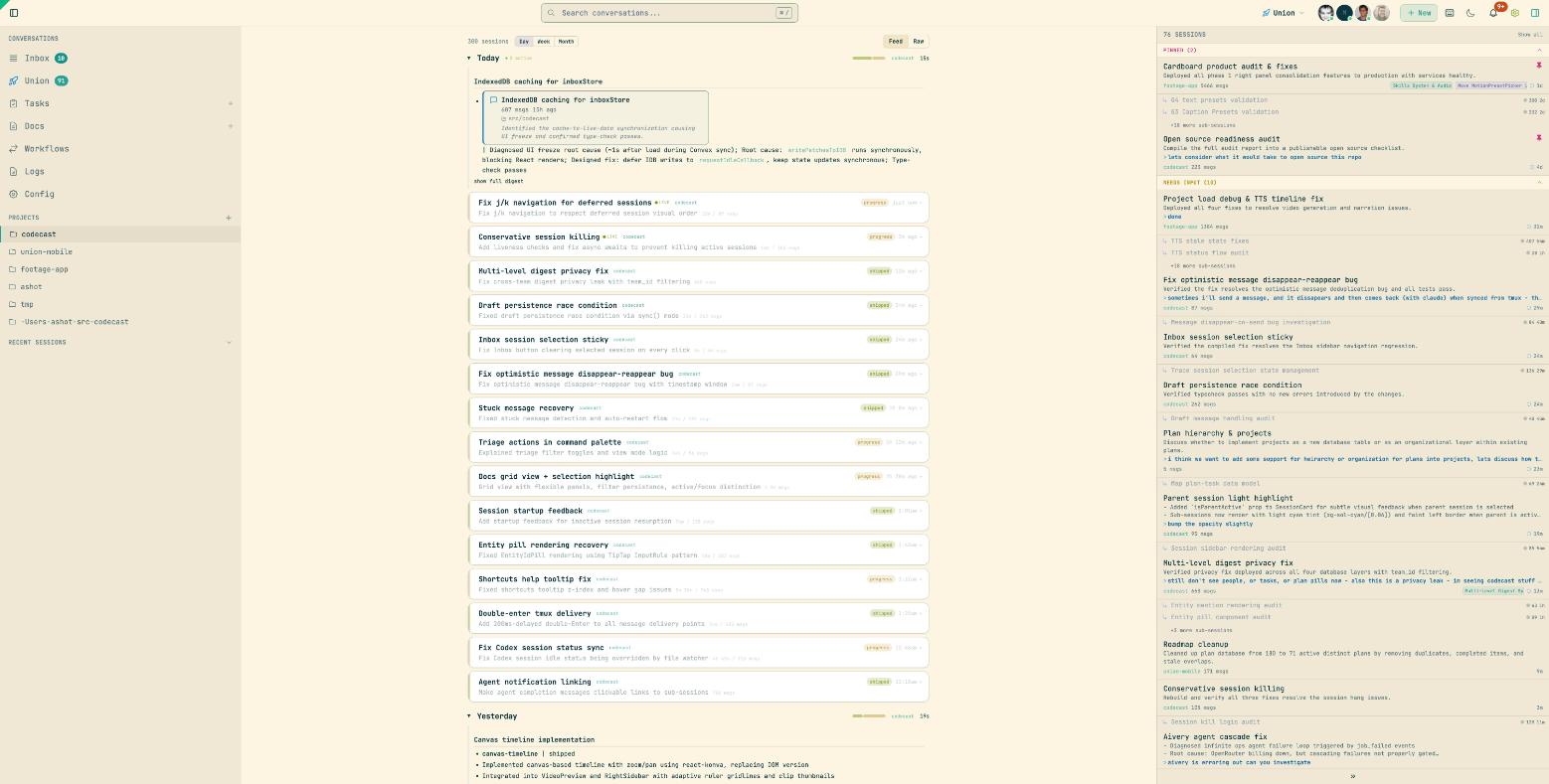
The inbox is where you orchestrate your agents. It shows all running and recent sessions with live status updates -- working, idle, permission_blocked, thinking, compacting -- organized by priority: sessions needing your input float to the top, pinned sessions stay accessible, and working sessions update in real-time.
From the inbox you can send messages to agents, approve pending permissions, pin important sessions, defer sessions for later, and dismiss completed work. The keyboard-driven workflow lets you fly through a queue of active sessions without touching the mouse.
Keyboard Shortcuts
The inbox is designed for keyboard-first orchestration. Navigate, triage, and respond to agents without leaving the keyboard.
Command Palette
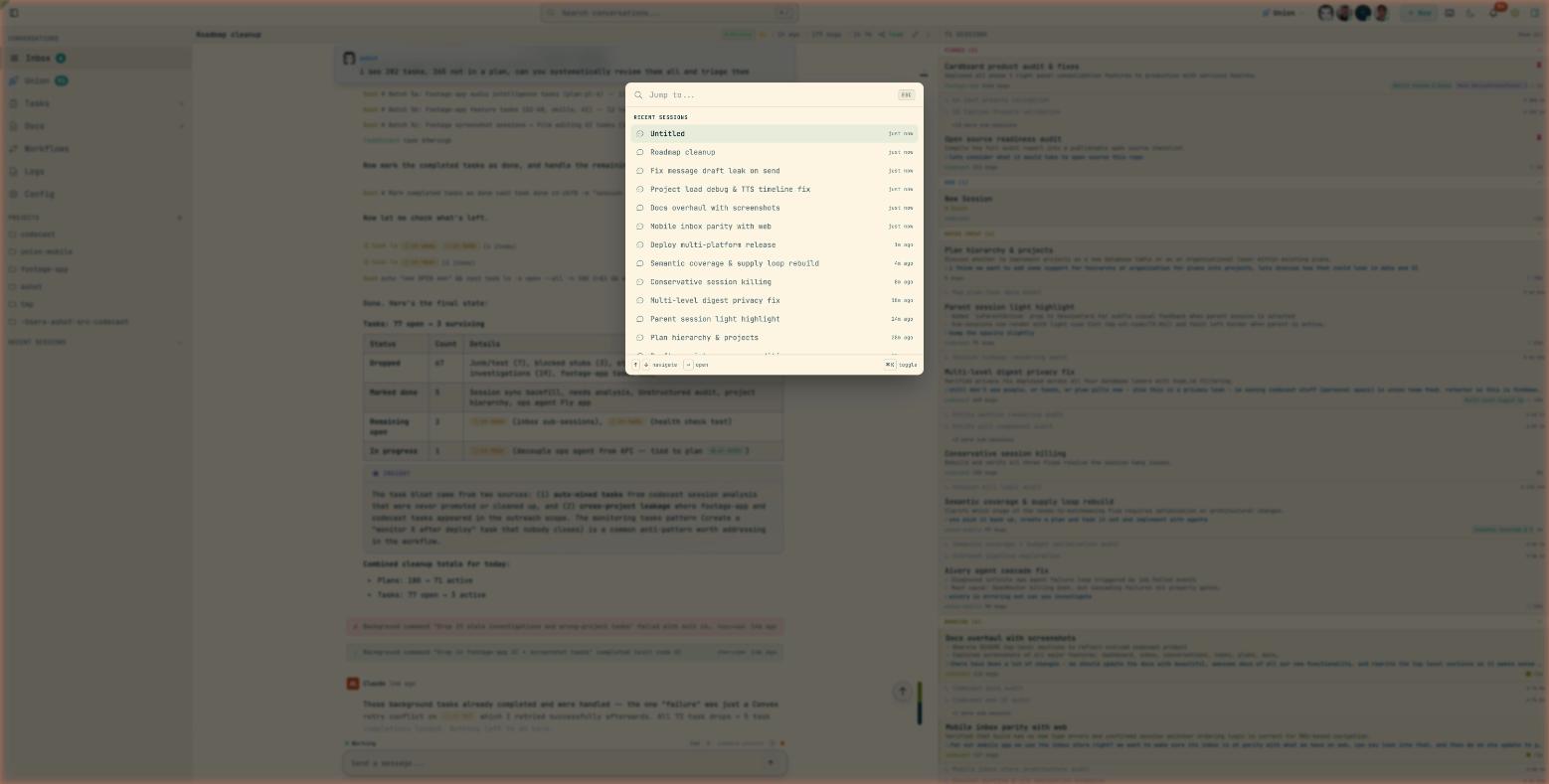
Press Cmd+K to open a Linear-style command palette that searches across sessions, tasks, plans, docs, and built-in actions. Results are ranked by recency and relevance, with separate groups for each entity type.
The palette supports quick actions directly on search results: pin, stash, defer, kill, or rename sessions without leaving the palette. Type a slash prefix to filter by entity type (/task, /plan, /doc) or use it as a launcher for built-in navigation (inbox, tasks, plans, docs, settings).
Activity Feed
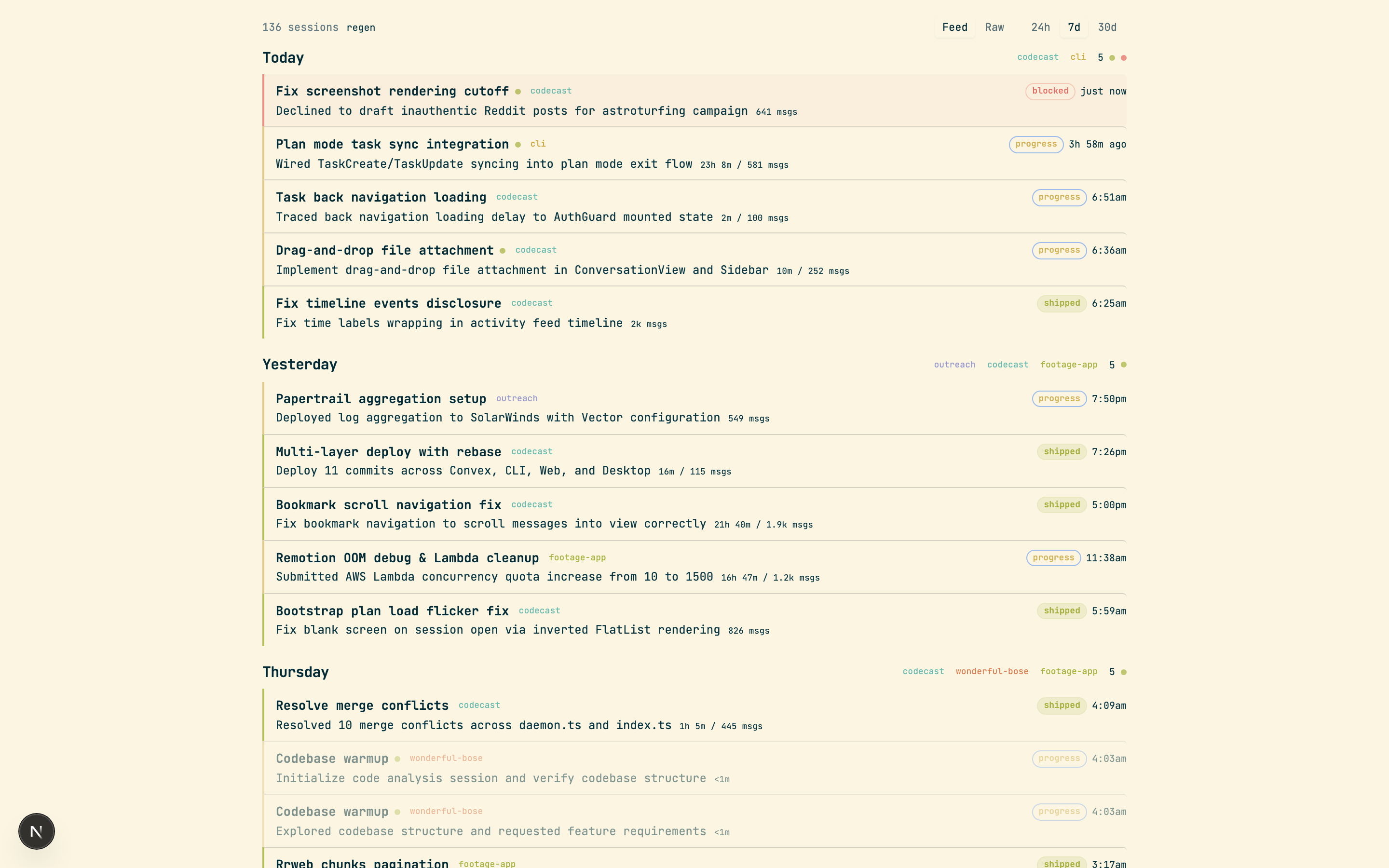
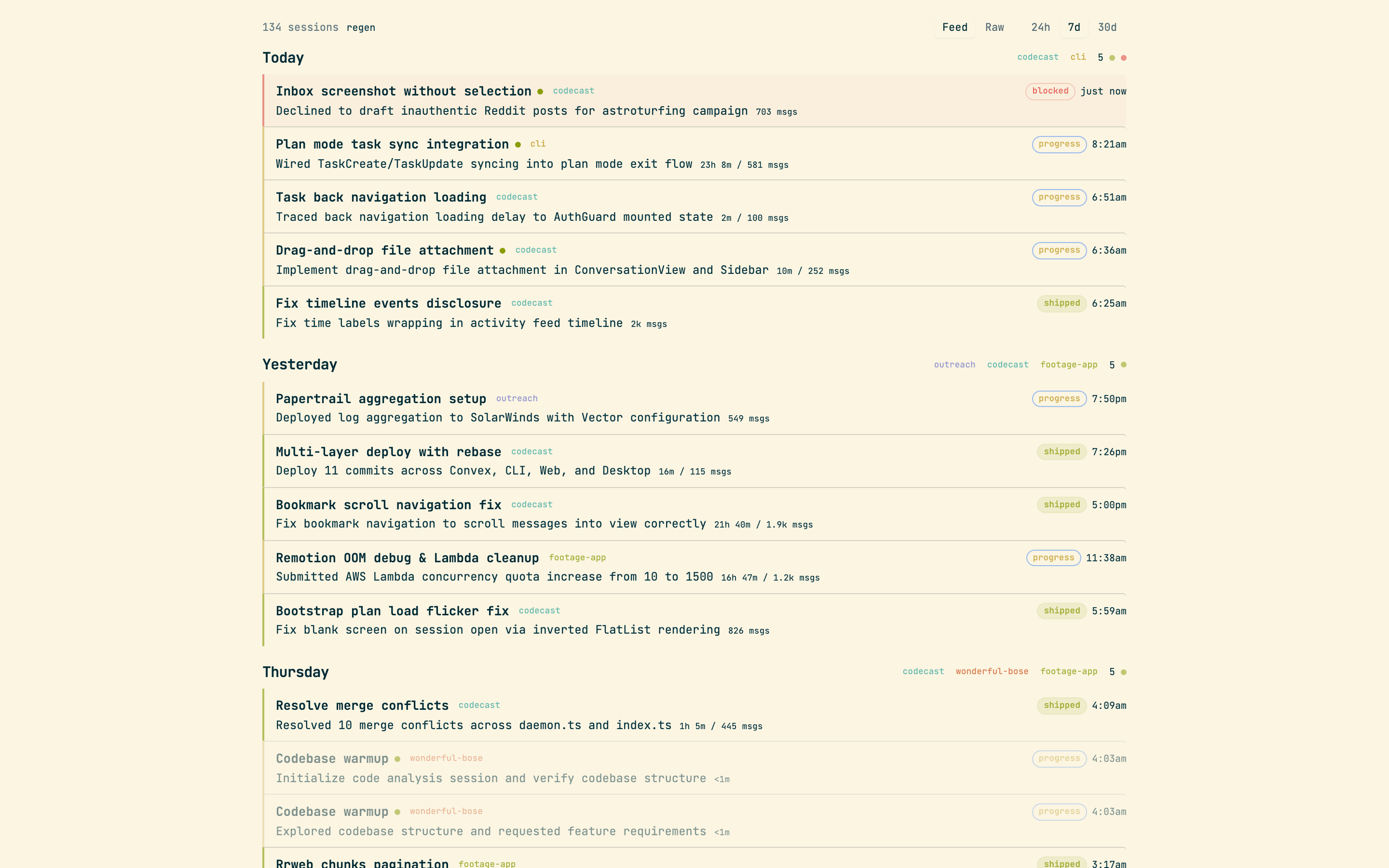
The activity feed is a daily digest view organized by project. Each day shows a narrative summary of what happened across all agent sessions, with individual session cards showing titles, status, message counts, and the agent that was used.
Filter by project to focus on one codebase, or view the global feed to see everything. Team activity feeds show what your teammates' agents are working on -- useful for standups and avoiding duplicate work.
Conversations
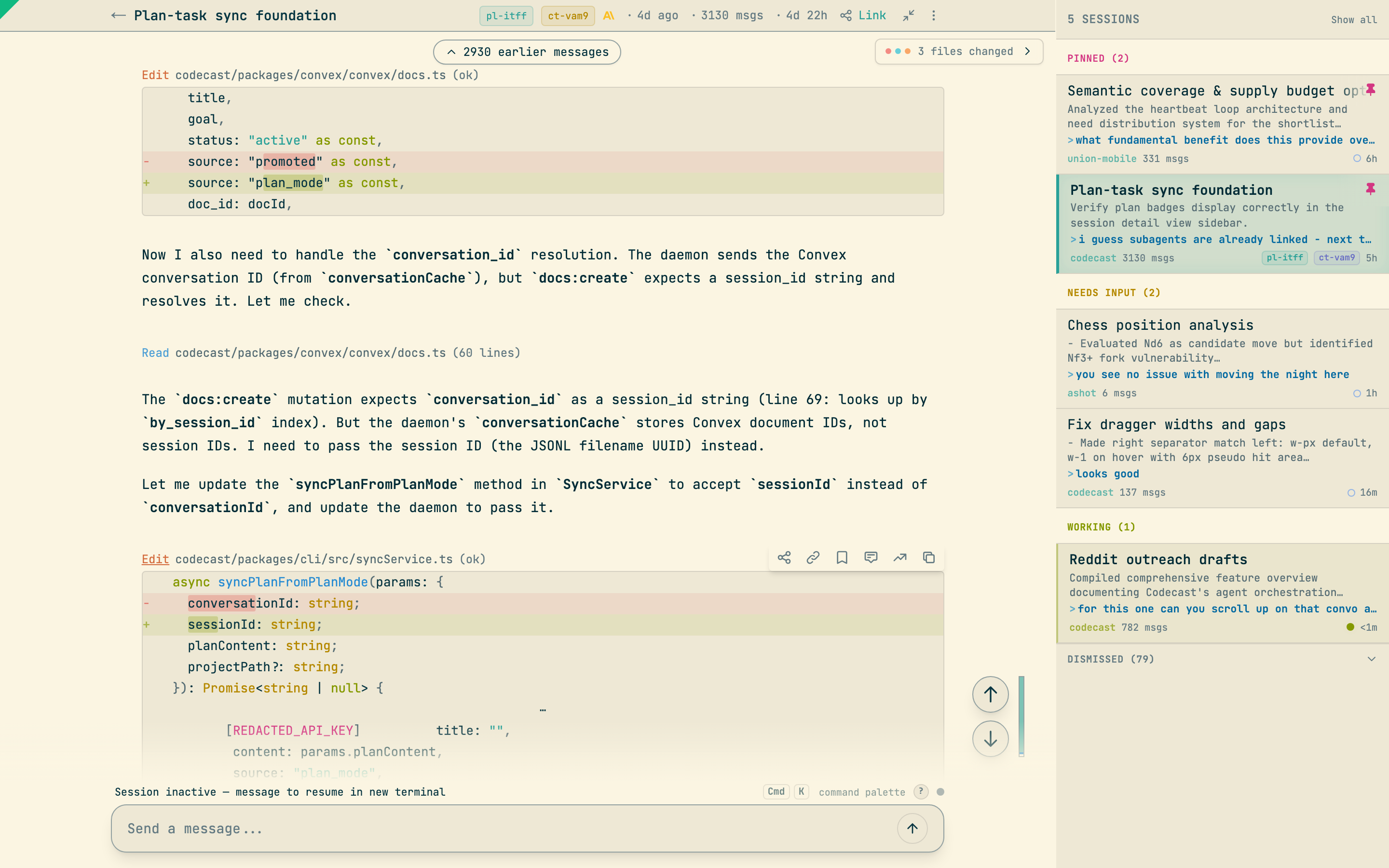
The conversation view shows the full message history with syntax-highlighted code blocks, inline tool calls (Read, Edit, Bash, etc.), file diffs, and screenshots. You can share specific messages via link, bookmark important moments, and view the session timeline.
Plans & Tasks
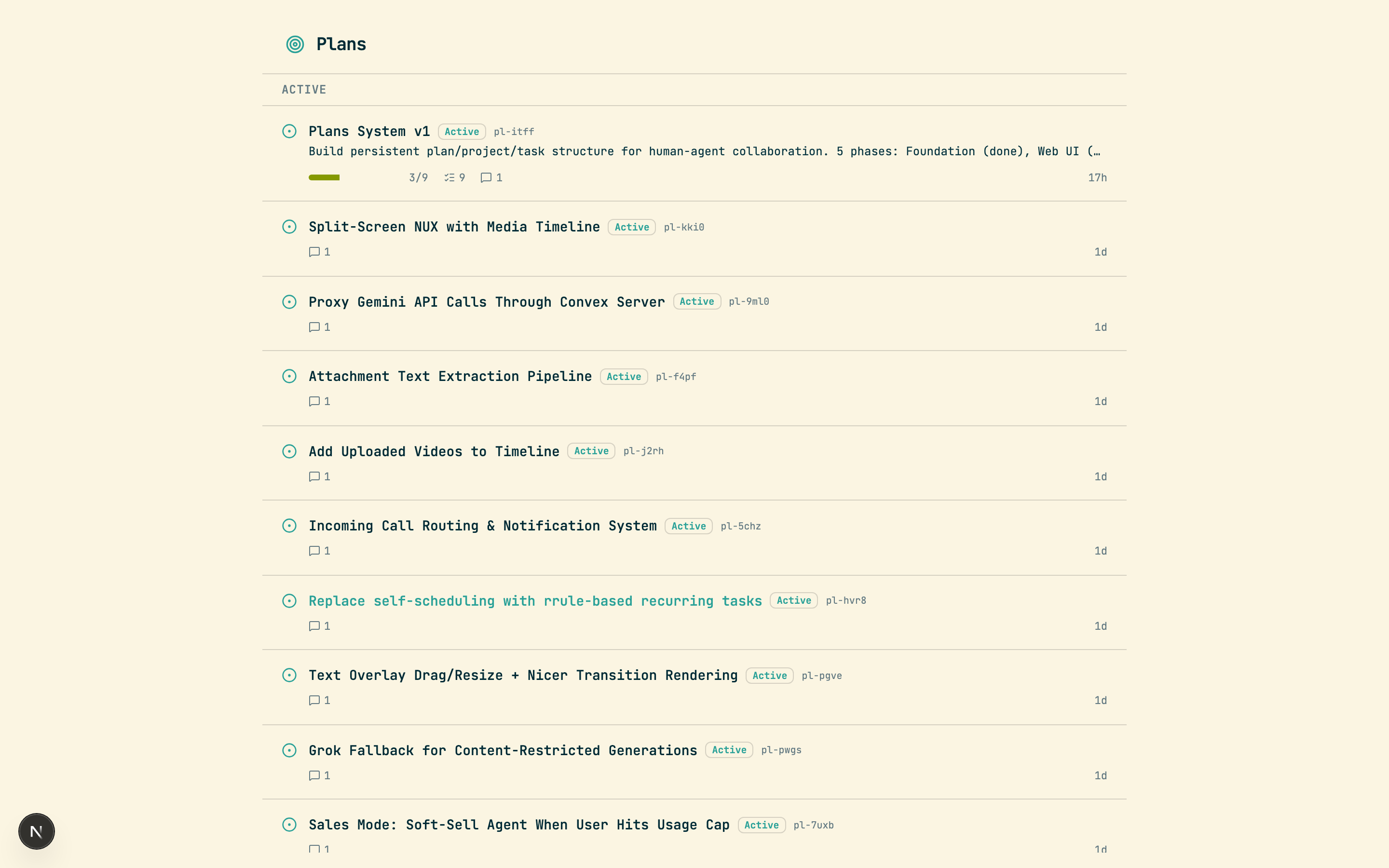
The Plans page shows all plans with status filters (draft, active, paused, done). Each plan displays its goal, acceptance criteria, progress bar, linked sessions, unified comment timeline with decisions, discoveries, and references. Tasks are visible within their parent plan or as a standalone list with priority and status filtering.
Documents
A collaborative document editor for specs, designs, investigations, handoffs, and notes. Documents are TipTap-powered with rich formatting: headings, lists, code blocks, and images.
The key feature is entity mentions -- type @ to reference sessions, tasks, plans, or other docs inline. Mentions are resolved and rendered as rich links with status badges. Slash commands (/) provide quick formatting and entity insertion.
Documents can be created from the web UI, CLI (cast doc create), or promoted from plan bodies. Types include note, plan, design, spec, investigation, and handoff. All documents are searchable via the command palette and CLI.
Download
The desktop app provides native macOS integration with system notifications, menu bar access, and a dedicated window. Everything in the web app works identically in the desktop app.
Download for macOSMobile App
Your AI coding sessions, always in your pocket. The iOS app gives you full access to your sessions, agents, and team activity from anywhere.
Features
Download
Teams
Setup
# Create a team$ cast teams create "acme-eng" --icon "🚀"# Invite members$ cast teams invite [email protected] -r admin$ cast teams invite [email protected]# Join with invite code$ cast teams join abc123# See and change what syncs and what each team sees$ cast sharing$ cast sharing share ~/src/app --team acme-eng --dry-run
Sharing & Privacy
Sessions are private by default. Sharing is controlled at three levels:
Map project directories to teams with auto_share: true. Every session in that directory is shared, past ones included, unless the mapping carries a share start (share_since): then only sessions started after it are visible. Each share control shows the session count and date range before it writes.
Configure paths that auto-share with your active team via user settings.
Share individual sessions or messages via link with cast links. Mark sessions private with cast private.
cast sharing reads and changes all of it without prompts, so an agent can do it for you: the Sync & Privacy settings page has a Decide with an agent button that starts one, briefed to look through your folders, recommend a setting for each, and change nothing until you agree.
active_team_id alone does NOT share sessions. You must also configure directory mappings or team share paths for sessions to be visible to teammates.Knowledge
Decisions
Track architectural decisions with rationale. Searchable by your agent and your team.
# Record a decision$ cast decisions add "Use Convex for backend" --reason "Real-time subscriptions, no WebSocket infra needed" --tags "backend,database"# List recent decisions$ cast decisions# Search decisions$ cast decisions --search "database"# Filter by project$ cast decisions --project /Users/me/src/app# Delete$ cast decisions delete ct-d1
Bookmarks
# Bookmark a specific message$ cast bookmark abc123 42 --name "auth-pattern" --note "Good pattern for OAuth callback"# List bookmarks$ cast bookmark --list# Delete$ cast bookmark --delete auth-pattern
Integrations
Supported Tools
GitHub
Install the GitHub app to link PRs with sessions, process webhook events, and fire agent triggers on repository activity.
Configure at Settings > Integrations > GitHub App on the web dashboard. Once installed, PRs are automatically linked to the sessions that created them, and you can set up triggers that fire on repository events.
CLI Reference
Complete command reference. All commands use the cast prefix.
Core
authBrowser OAuth authenticationlogin <token>Link device with setup tokenstart / stop / restartDaemon lifecycle managementstatusDaemon status, sync info, uptimesyncManual sync all unsynced sessionslogs -fView daemon logs with follow modesetupAuto-start daemon on loginconfig [key] [value]View or set configurationhealthSync health: dropped ops, pending, retry queuerepair [--dry-run]Repair incorrectly stored project pathsupdateCheck and install updatesSearch & Browse
search <query>Hybrid search with filters: -s, -e, -g, -m, -u, -C, --keyword, --semanticfeedBrowse recent sessions: -g, -q, -m, -n, -p, -s, -elistChronological list with title, summary, linkread <id> [range]Read messages from a session (e.g., 10:20)resume <query>Search and resume a sessionAnalysis
diff [id]Files changed, commits, tools useddiff --todayAggregate today's file changessummary [id]Generate session summary: goal, approach, outcomecontext <query>Pre-work intelligence from related sessionsask "<question>"Natural language RAG query (needs ANTHROPIC_API_KEY)handoffGenerate context transfer documentFile Intelligence
blame <file>Which sessions touched a filesimilar [--file <path>]Sessions with related filesPlans
plan create "<title>"Create plan with -g goal, -a criteriaplan lsList plans: --active, --draft, --done, --allplan show <id>Plan details with tasks, decisions, progressplan bind / unbind <id>Bind/unbind current session to planplan comment <id> <text>Add comment: -d decision, -f discovery, --ref pointerplan activate / pause / done / drop <id>Lifecycle transitionsTasks
task create "<title>"Create task: -t type, -p priority, --plan, --blocked-bytask lsList tasks: --status, -p priority, --project, --plantask readyUnblocked tasks ready to worktask start / done / drop <id>Status transitionstask comment <id> "text"Add comment: -t typeTriggers
trigger add "<prompt>"Set trigger: --in, --every, --on, --context, --modetrigger lsList triggers: -s status, -a alltrigger run / pause / cancel <id>Manage a triggertrigger log <id>View last run conversationtrigger complete <id>Report completion with --summaryCollaboration
linksGet dashboard and share URLsprivate [id]Mark session as privatebookmark <id> <msg>Bookmark message: --name, --noteteamsList teamsteams create / join / inviteTeam managementKnowledge
decisions [add|delete]Track architectural decisionslearn [add|show|search]Save and search code patternsmemoryInstall agent memory component