cast computer: your agent uses the apps on your Mac while you keep typing
Native apps through the accessibility tree, on windows behind yours, with every action read back and verified.
Computer-use agents usually work from screenshots and pixel coordinates, and they need the screen to themselves: they move your mouse, steal focus and type into whatever window is in front. cast computer works from the other end. It reads one native window as an indexed accessibility tree, acts on an element by name or index, and reports exactly what changed. Every verb works on a window behind the one you are using, so Preview, Slack, System Settings, a file picker or your own desktop build are in reach without the agent taking your screen. Inside a web page, cast browser stays the tool; cast computer is for native apps and for what a page cannot reach (the address bar, a save dialog, a permission sheet).
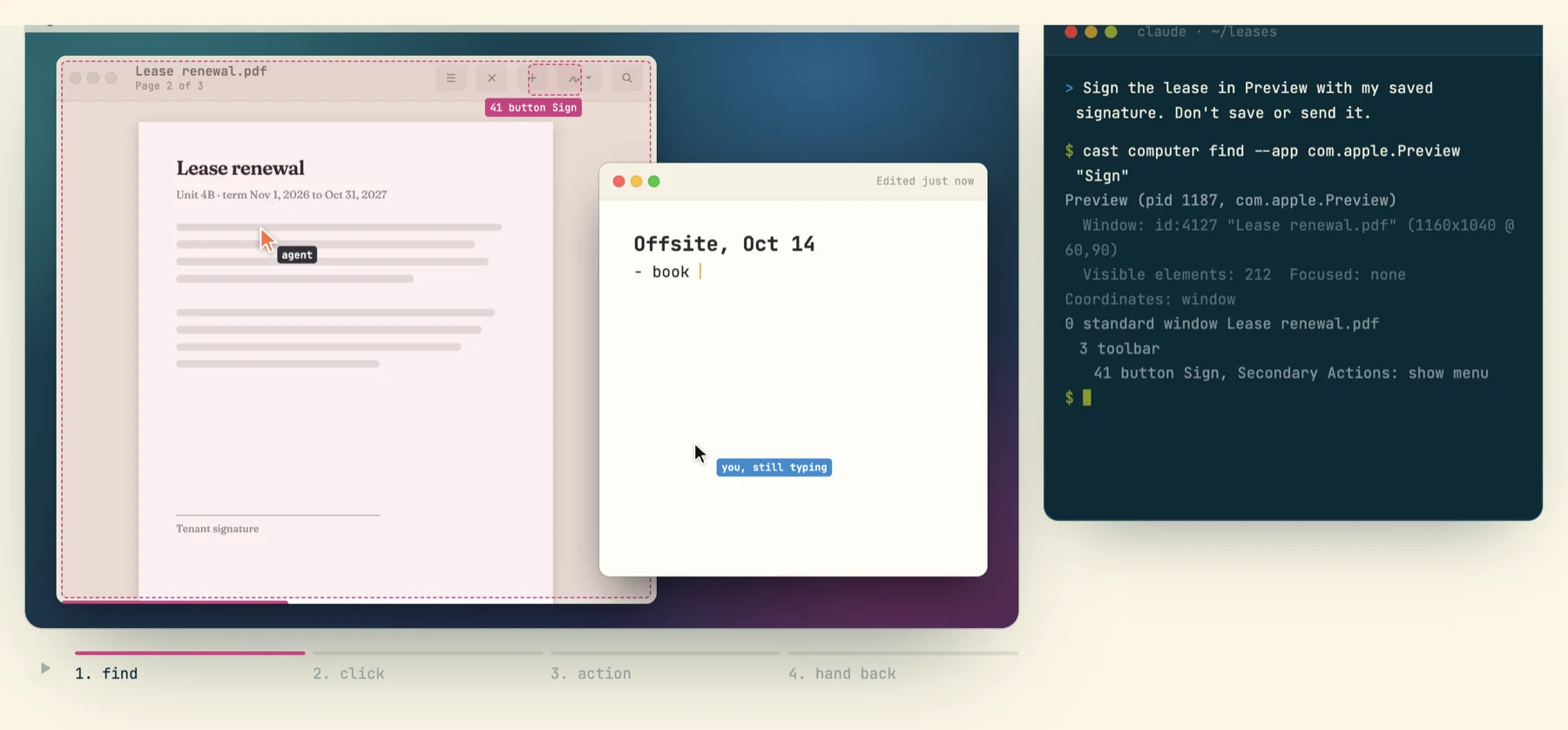
41 button Sign.A window, read as text
An agent names an app (a bundle id is preferred, since names collide) and gets back one window as lines: an index, a role, a name and the Secondary Actions the element advertises. The tree is sparse on purpose (it drops noise, so indexes skip), and an agent never counts its way to an index; it reads the number off the line. find "Sign" prints only the matches with their ancestors, --under 31 one subtree, and get-app-state --diff only what changed since the last read. An index belongs to the tree it came from: after navigation, scrolling or a focus change, a stale index fails as element_not_found instead of clicking whatever sits there now.
$ cast computer find --app com.apple.Preview "Sign"
Preview (pid 1187, com.apple.Preview)
  Window: id:4127 "Lease renewal.pdf" (1160x1040 @ 60,90)
  Visible elements: 212  Focused: none  Coordinates: window
0 standard window Lease renewal.pdf
  3 toolbar
    41 button Sign, Secondary Actions: show menu

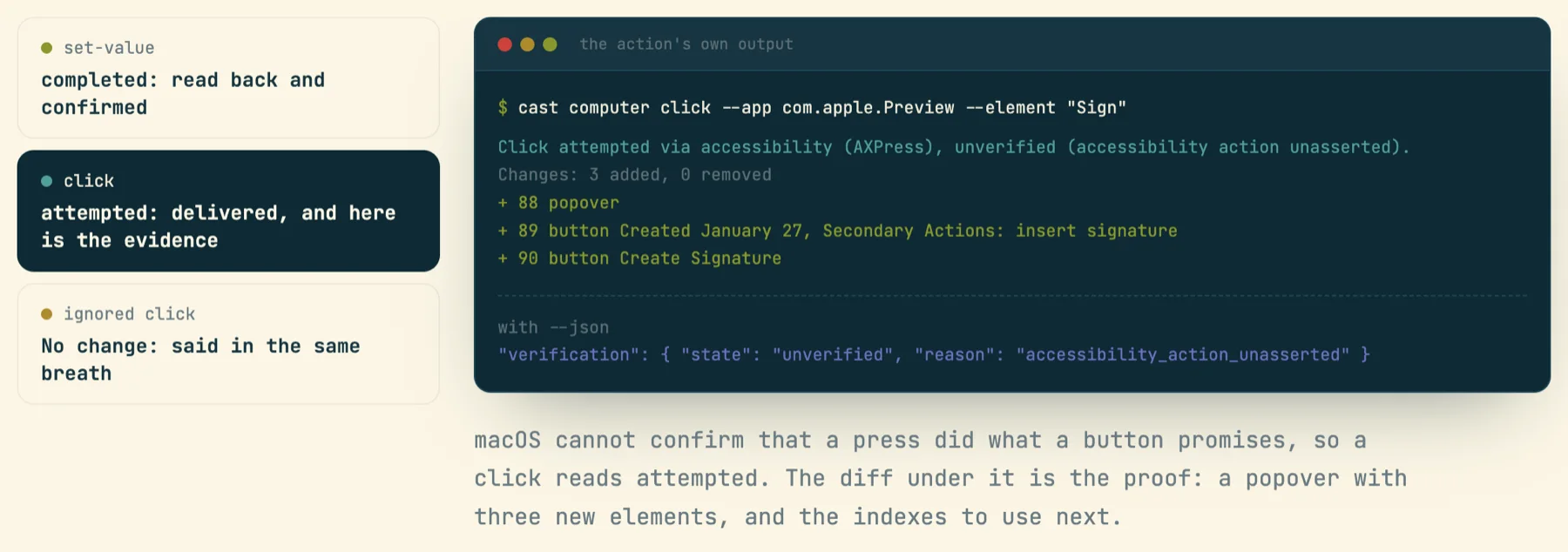
$ cast computer click --app com.apple.Preview --element "Sign"
Click attempted via accessibility (AXPress), unverified (accessibility action unasserted).
Changes: 3 added, 0 removed
+ 88 popover
+ 89 button Created January 27, Secondary Actions: insert signature
+ 90 button Create Signature
(From the feature page's fixture. A real read on this machine, cast computer permissions, prints Permissions: accessibility=granted, screenshots=granted and shows nothing on screen.)
Verified versus attempted
Exit code 0 means the helper delivered the action, not that the app took it. Every action prints one sentence saying what was attempted, by which route, and whether the change was read back, then the lines of the tree that moved. set-value can be confirmed by reading the value back, so it reads completed. macOS cannot confirm that a press did what a button promises, so a click reads attempted, and the diff under it is the evidence: here a popover with three new elements, plus the indexes to use next, so no extra snapshot is needed. An action the app ignored says "No change" in the same breath. With --json this is action.verification.
You keep your screen, mouse and keyboard
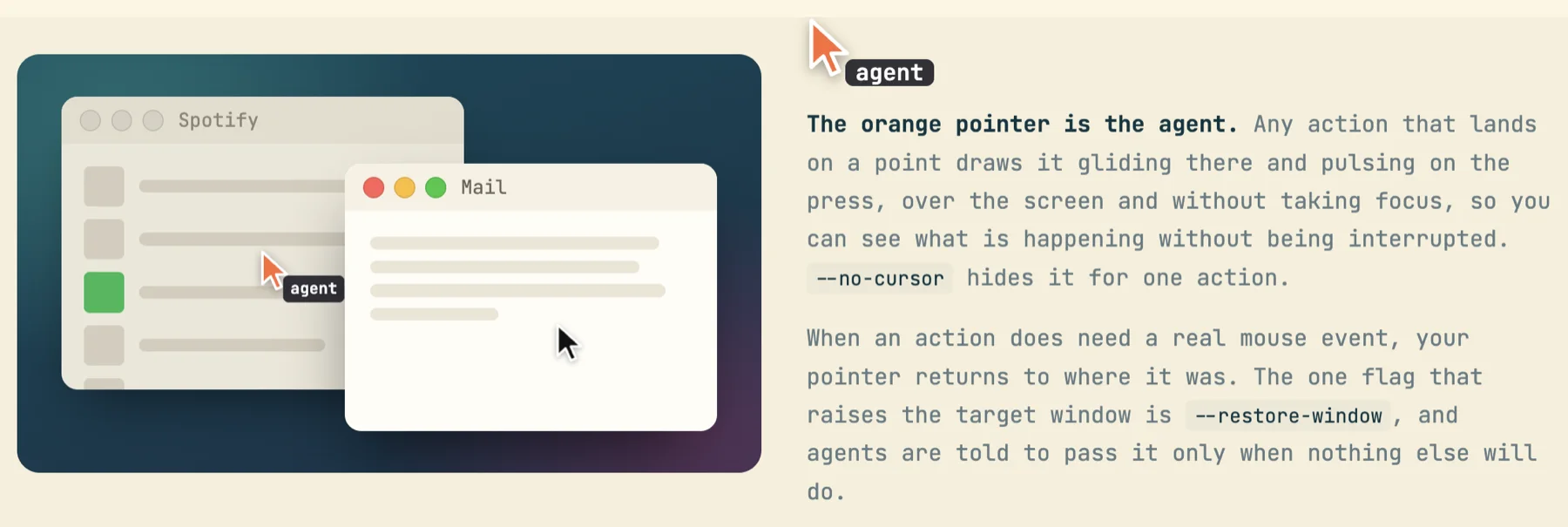
No verb brings a window forward on its own. set-value, perform-secondary-action and clicks on pressable elements go through accessibility on a background window. Keys and typing go into the target app's own event queue, never into the app you are typing in. A coordinate click on a background window presses the control under that point through accessibility. Only a real mouse event (--mouse, drag, a control with no press) needs the window in front; macOS drops those on a background window, so the command fails with window_not_focused unless the agent passes --restore-window, and your pointer returns to where it was afterwards.
So you can see what is happening without being interrupted, any action that lands on a point draws an orange agent pointer gliding there and pulsing on the press, drawn over the screen without taking focus (--no-cursor hides it for one action).
Built for a machine with your life on it
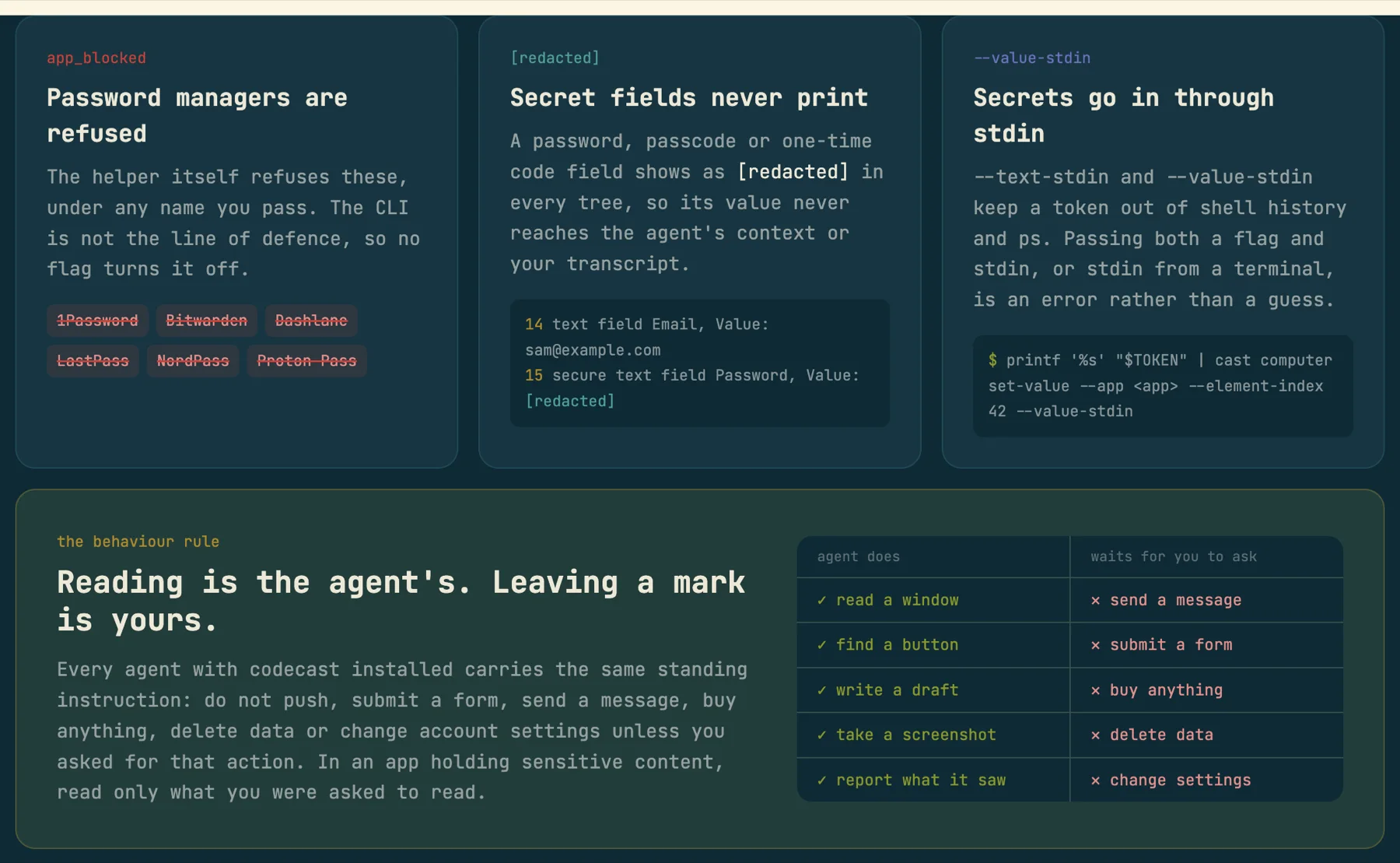
Some limits are enforced where they cannot be talked around. The helper itself refuses 1Password, Bitwarden, Dashlane, LastPass, NordPass and Proton Pass under any name, answering app_blocked; no CLI flag turns that off. Password, passcode and one-time-code fields render as [redacted] in every tree, so their values never reach the agent's context or the transcript. Secrets go in through --text-stdin or --value-stdin, out of shell history and ps. And every agent carries the same standing rule: reading is the agent's to do; sending, submitting, buying, deleting or changing settings waits for you to ask.
Setup is two macOS grants, Accessibility and Screen Recording, given once by a person to a small signed helper app (~/.codecast/computer/codecast computer.app) rather than to your terminal, which runs everything you and every agent type. cast computer setup walks you through both and opens only the pane still missing. Like the browser, cast computer do --app <app> - batches many steps over one helper connection. Every failure carries a code and a recovery (for example element_not_found: snapshot again and use the fresh index), and the rule they share is to change something before retrying. Linux under X11 runs the same verbs through AT-SPI; there is no Windows provider, and it never launches closed apps.